
Povezivanje WhatsApp broja salona
Connecting your salon's WhatsApp number
Radi se jednom, traje 10-15 minuta. Posle toga PMUdesk šalje potvrde termina, podsetnike i healing poruke sa tvog broja - klijentkinje vide tebe, ne nas.
You do it once, and it takes 10-15 minutes. After that, PMUdesk sends appointment confirmations, reminders and healing messages from your number - clients see you, not us.
Šta se dešava pri povezivanju
Tvoj broj ostaje u WhatsApp Business aplikaciji na telefonu. Nastavljaš da se dopisuješ sa klijentkinjama kao i do sada - PMUdesk se samo dodaje pored i šalje automatske poruke sa istog broja.
Šta pripremiš pre početka
- Facebook nalog salona i lozinku - kroz njega ide povezivanje. Ako salon već ima poslovni portfolio na Facebooku, taj nalog mora biti njegov administrator.
- Telefon sa brojem salona i instaliranom aplikacijom WhatsApp Business (ne običan WhatsApp), ažuriranom na verziju 2.24.17 ili noviju - na starijoj povezivanje ne prolazi. Verziju vidiš u WhatsApp Business → Podešavanja → Pomoć.
- Platnu karticu salona - dodaje se odmah posle povezivanja (korak 7), za Metinu naplatu poruka.
- 15 minuta bez prekida - postupak ne može da se pauzira na pola.
Koraci
- U PMUdesk aplikaciji otvori Podešavanja → WhatsApp Business i dodirni Poveži WhatsApp. Ako te telefon pita da li dozvoljavaš prijavu preko pmudesk.com, potvrdi sa Continue.
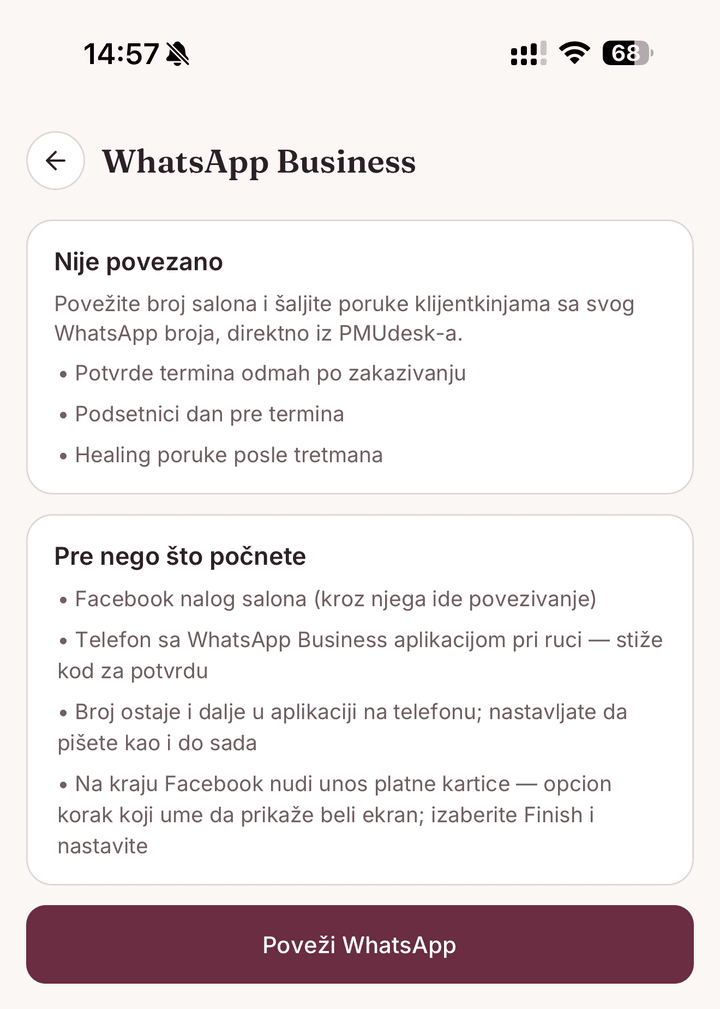
Podešavanja → WhatsApp Business - Otvara se naša stranica sa dugmetom Poveži WhatsApp - dodirni ga. Zatim se otvara Facebook: prijavi se nalogom salona i potvrdi dugmetom Continue as … sa svojim imenom.
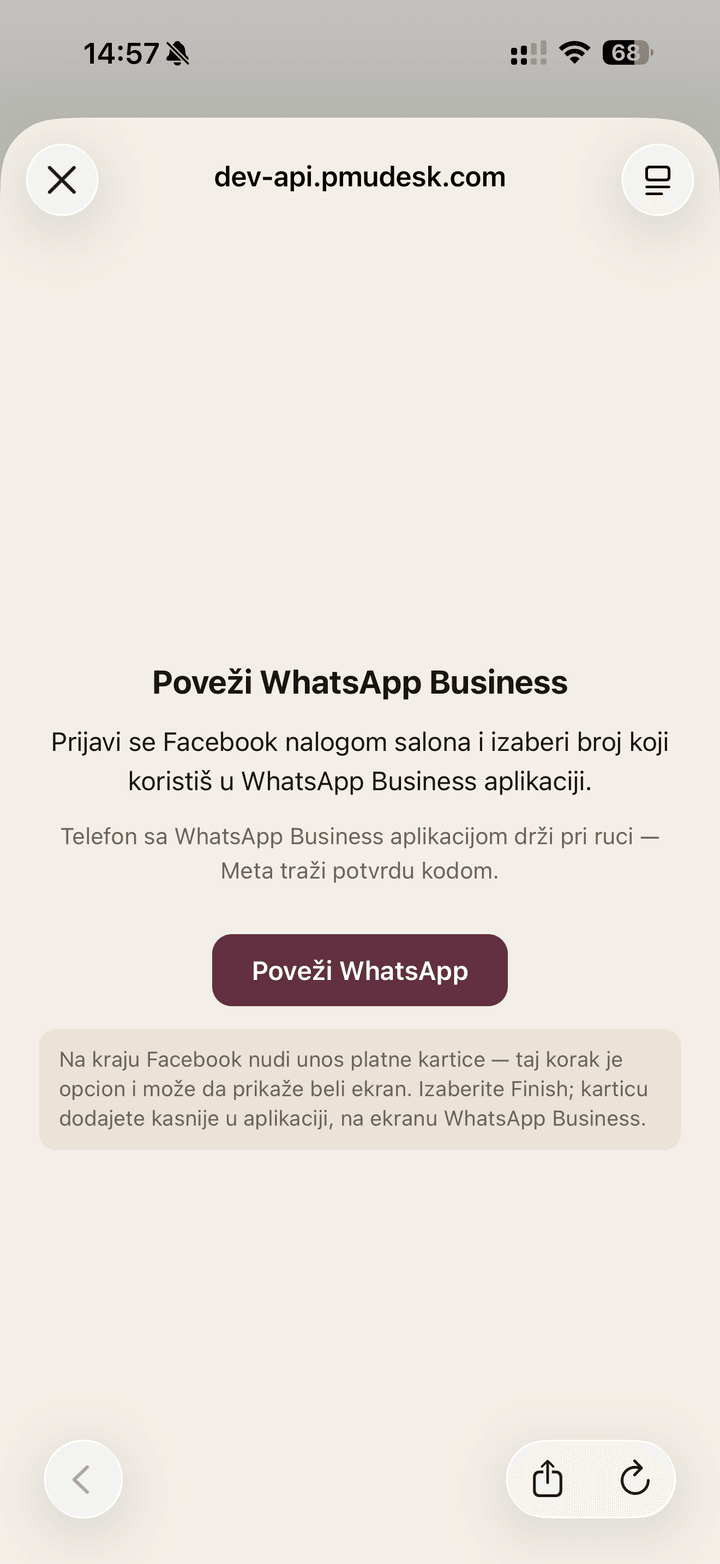
Naša stranica - dodirni Poveži WhatsApp 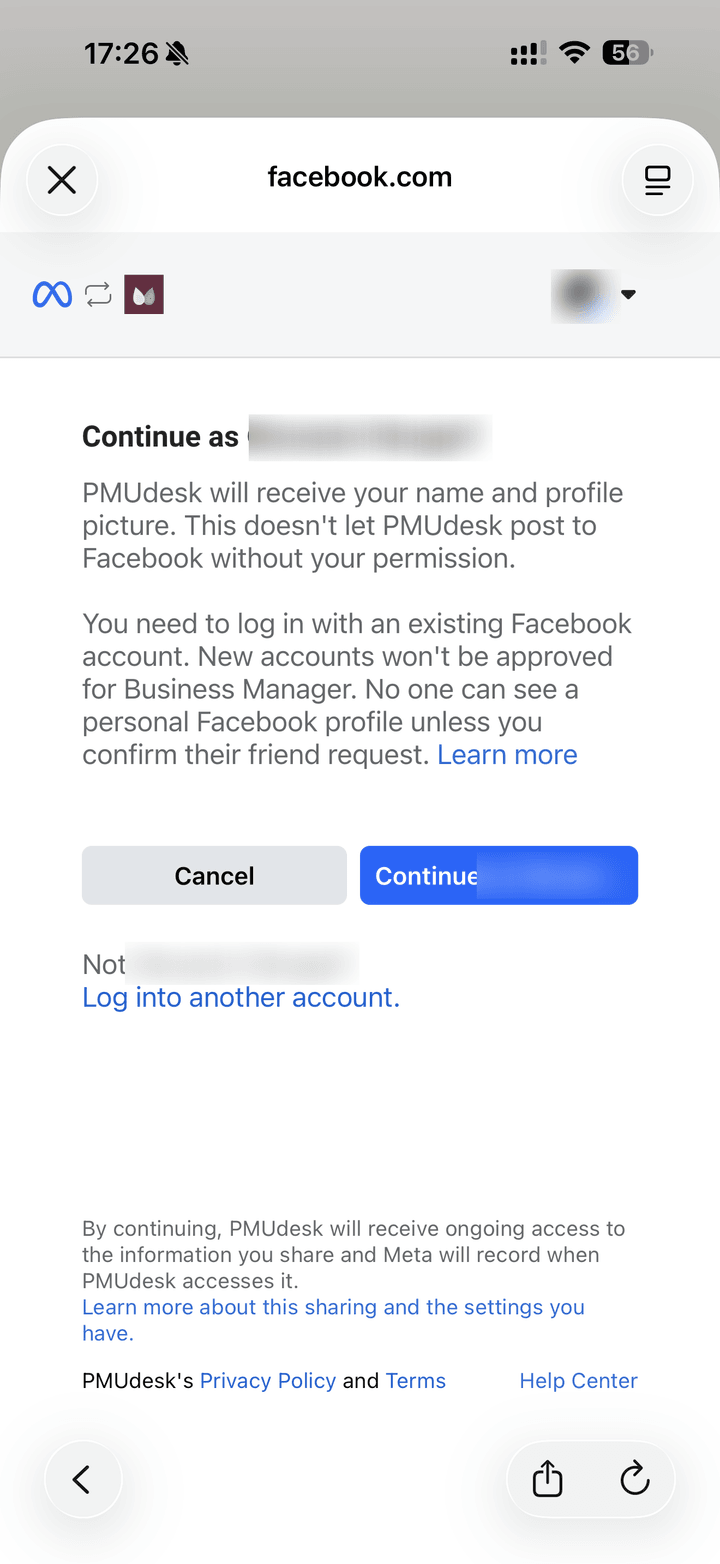
Facebook prijava - Continue as … - Facebook te vodi kroz svoj prozor, na engleskom. Na prvom ekranu dodirni Continue. Zatim biraš poslovni portfolio (Business portfolio) salona - ako ga nemaš, tu ga i kreiraš. Unesi ime salona, email, državu i sajt ako ga imaš.
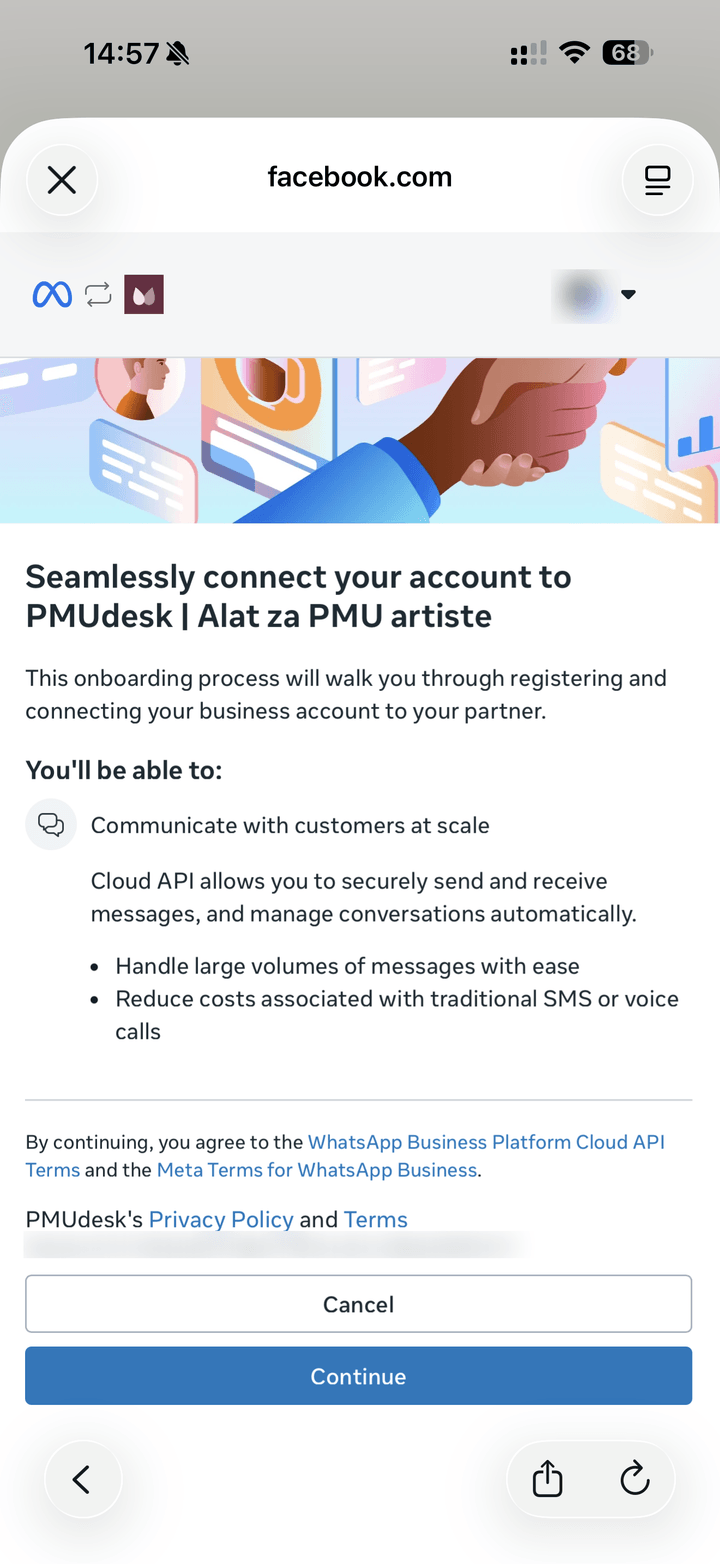
Početni ekran - Continue 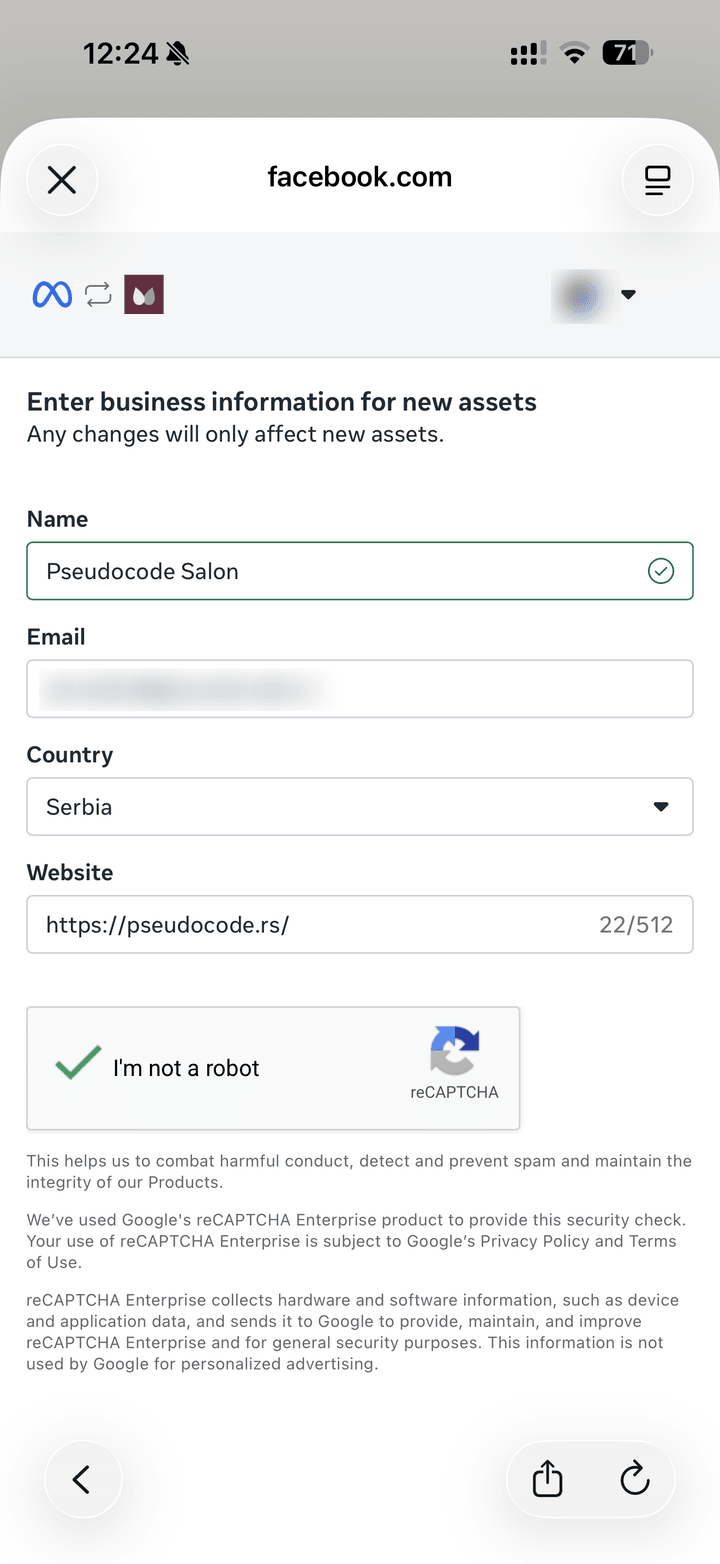
Podaci o poslovnom portfoliju - Zatim biraš ili kreiraš WhatsApp Business nalog (WhatsApp Business account). Unesi ime koje želiš da klijentkinje vide i vremensku zonu Europe/Belgrade.
- Unesi broj telefona salona - isti onaj koji već koristiš u WhatsApp Business aplikaciji. Facebook prikaže podatke naloga na proveru (Next), a zatim traži potvrdu broja: otvori WhatsApp Business aplikaciju na telefonu i ukucaj kod koji ti Facebook prikaže (Enter Access code) ili dodirni Scan QR instead i skeniraj QR kod - zato telefon mora biti pri ruci. Na kraju Facebook ponudi da dodaš platnu karticu - taj korak često prikaže prazan beli ekran. To nije greška: izaberi Finish, a karticu dodaj odmah posle, u koraku 7.
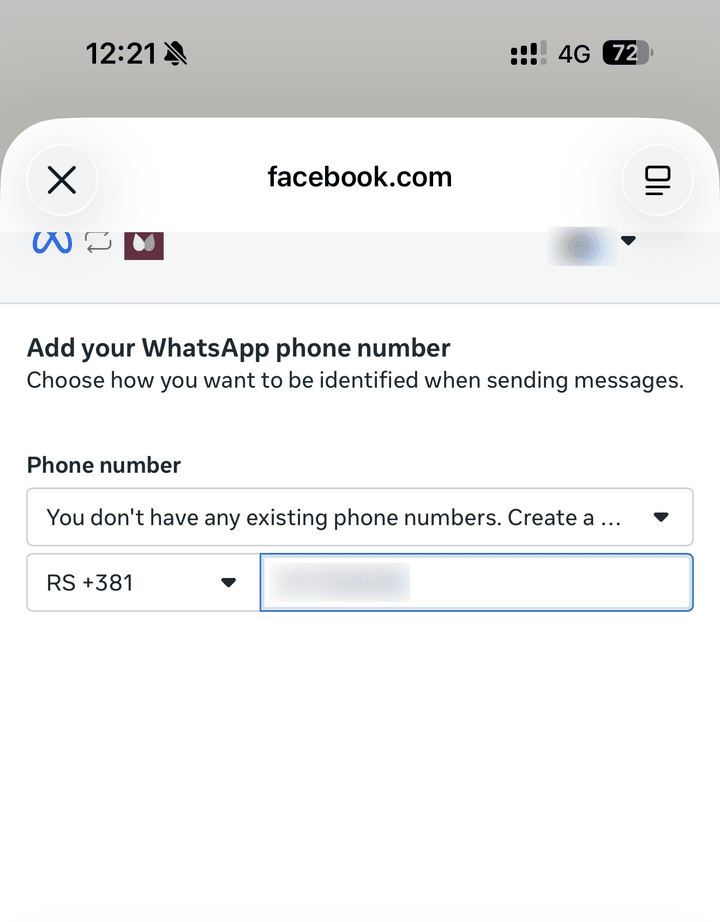
Unos broja salona 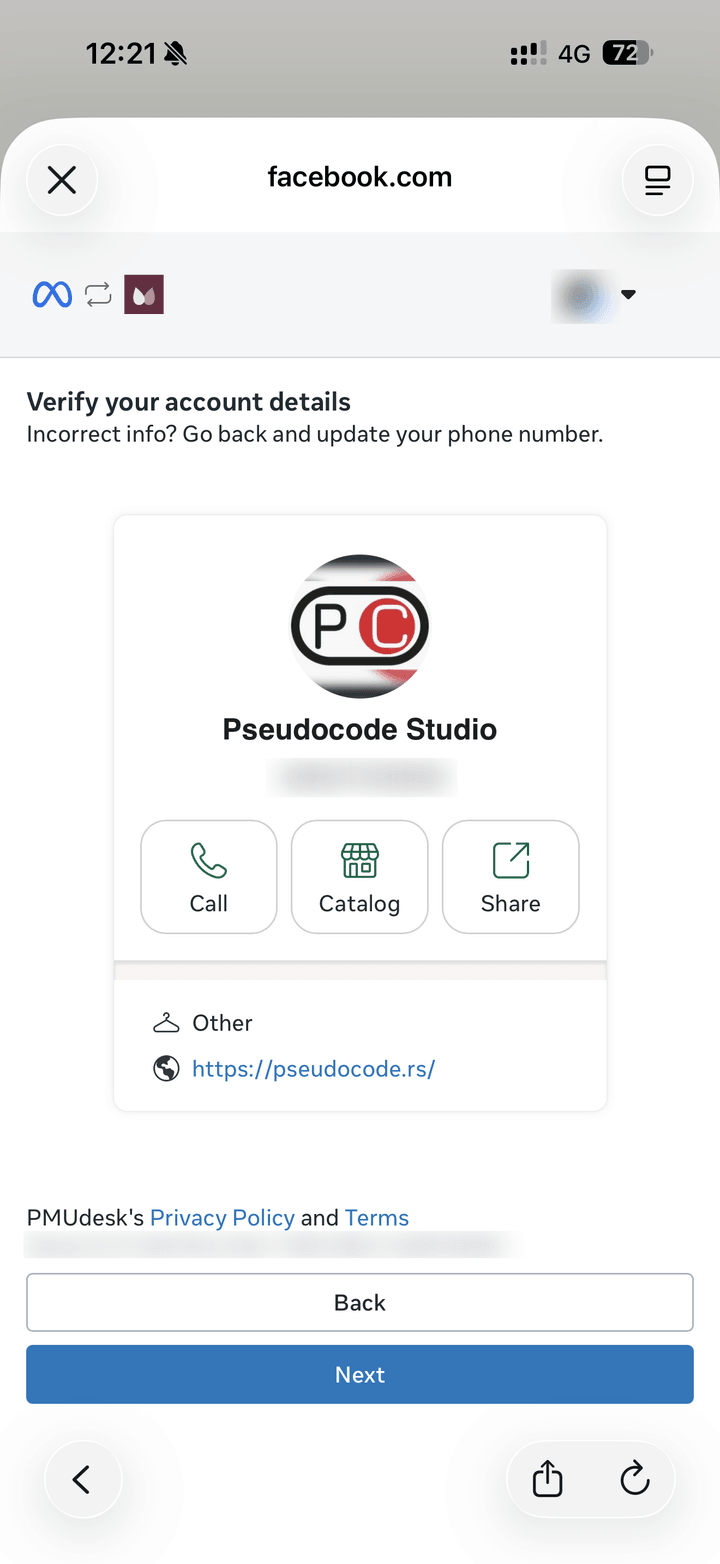
Provera podataka - Next 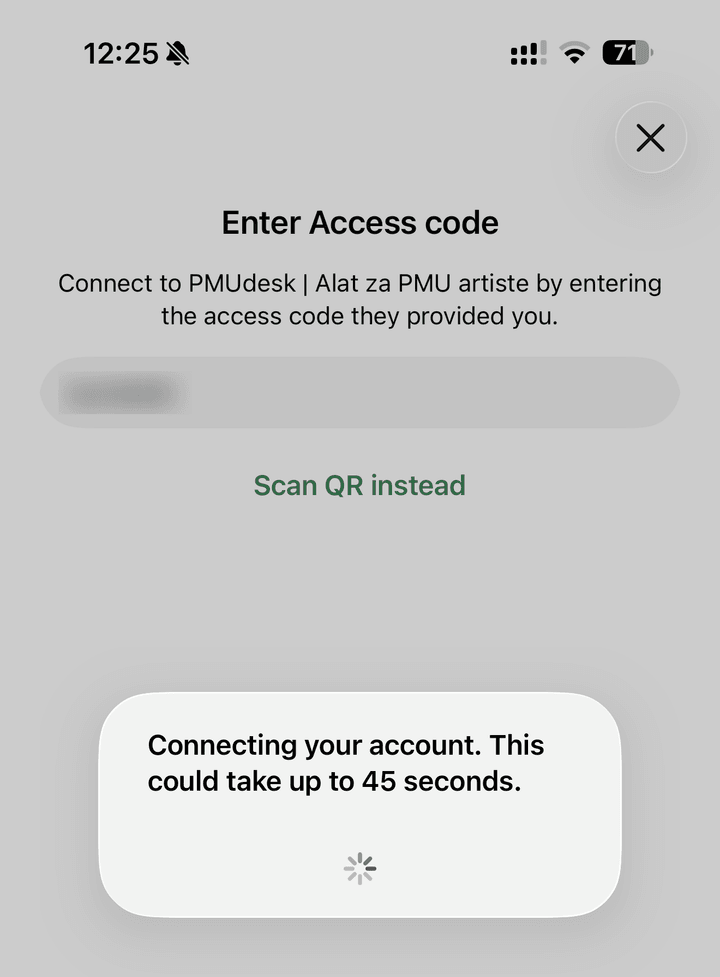
Kod ukucaš u WhatsApp Business aplikaciji - Automatski se vraćaš u PMUdesk. Na ekranu WhatsApp Business vidiš svoj broj, ime i datum „Aktivno do …", kao i listu šablona poruka sa oznakom Na čekanju.
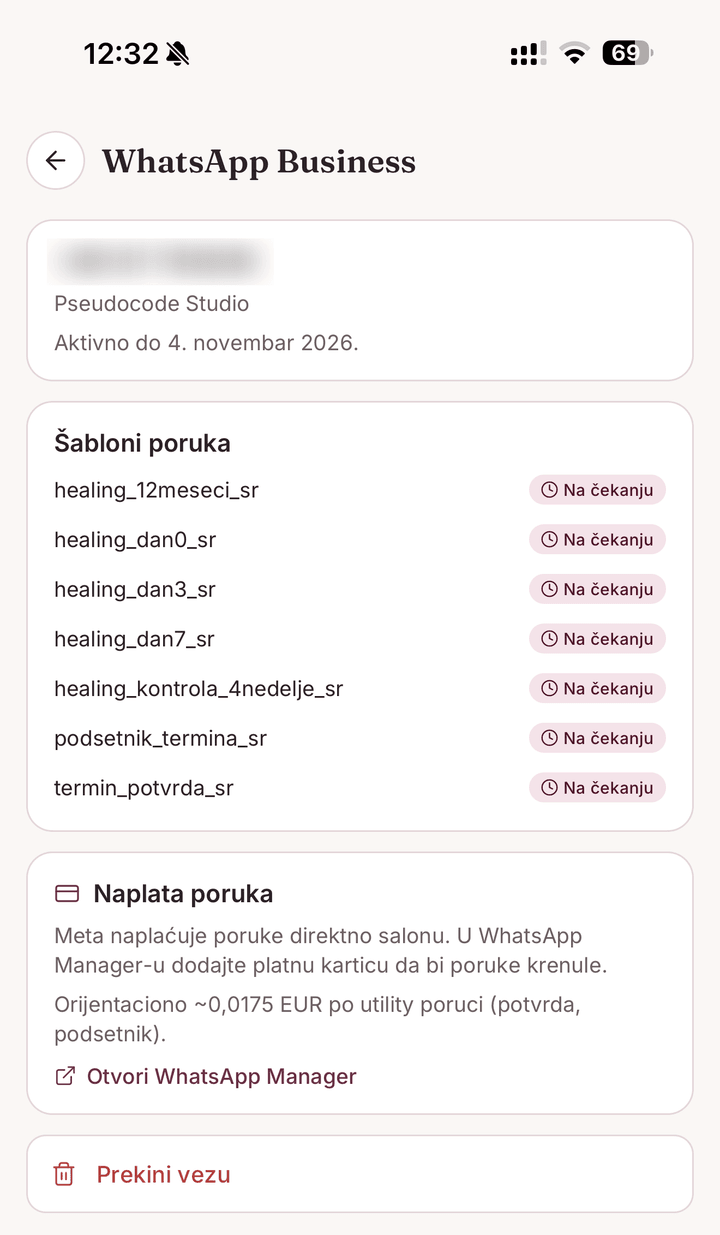
Povezano - šabloni čekaju odobrenje - Odmah dodaj platnu karticu - ne čekaj odobrenje šablona. Najlakše je sa računara: otvori business.facebook.com/settings, prijavljena istim Facebook nalogom, i gore levo izaberi portfolio salona. Zatim Billing & payments → Payment methods, tab WhatsApp Business accounts → Add payment method. Bez kartice aplikacija prikazuje crveni baner i poruke iz PMUdesk-a ne idu.
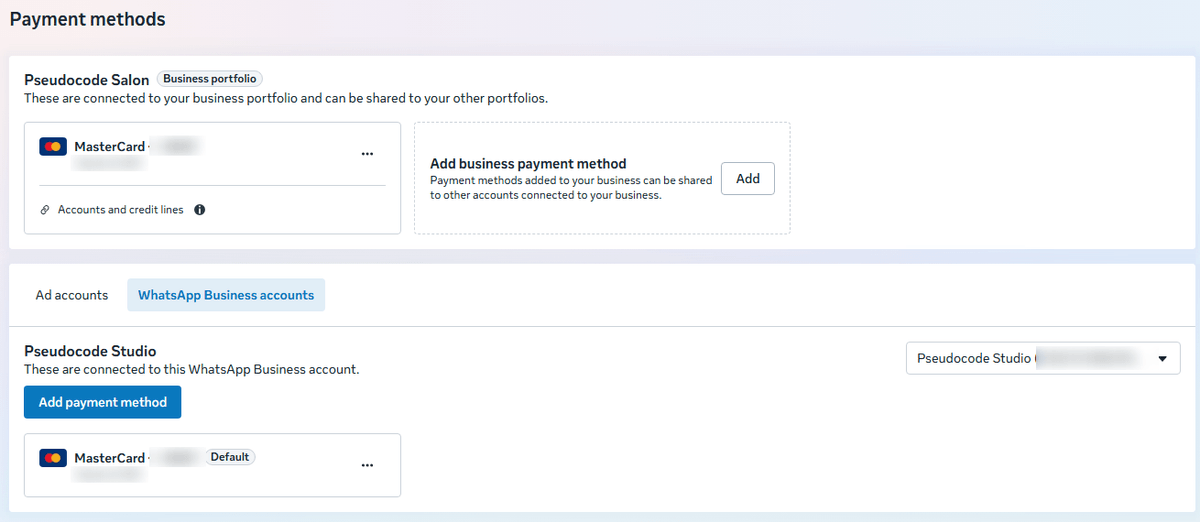
Billing & payments → Payment methods → WhatsApp Business accounts → Add payment method - Šablone Meta odobrava sama, obično za nekoliko minuta do nekoliko sati. Na ekranu WhatsApp Business dodiruj Osveži s vremena na vreme, dok svi ne budu Odobren. Ako neki šablon stoji Odbijen ili je označen kao Marketing - ne radi ništa, samo nam javi. Na istom ekranu, u delu Poruke o terminima, uključuješ potvrde i podsetnike klijentkinjama i biraš vreme podsetnika.
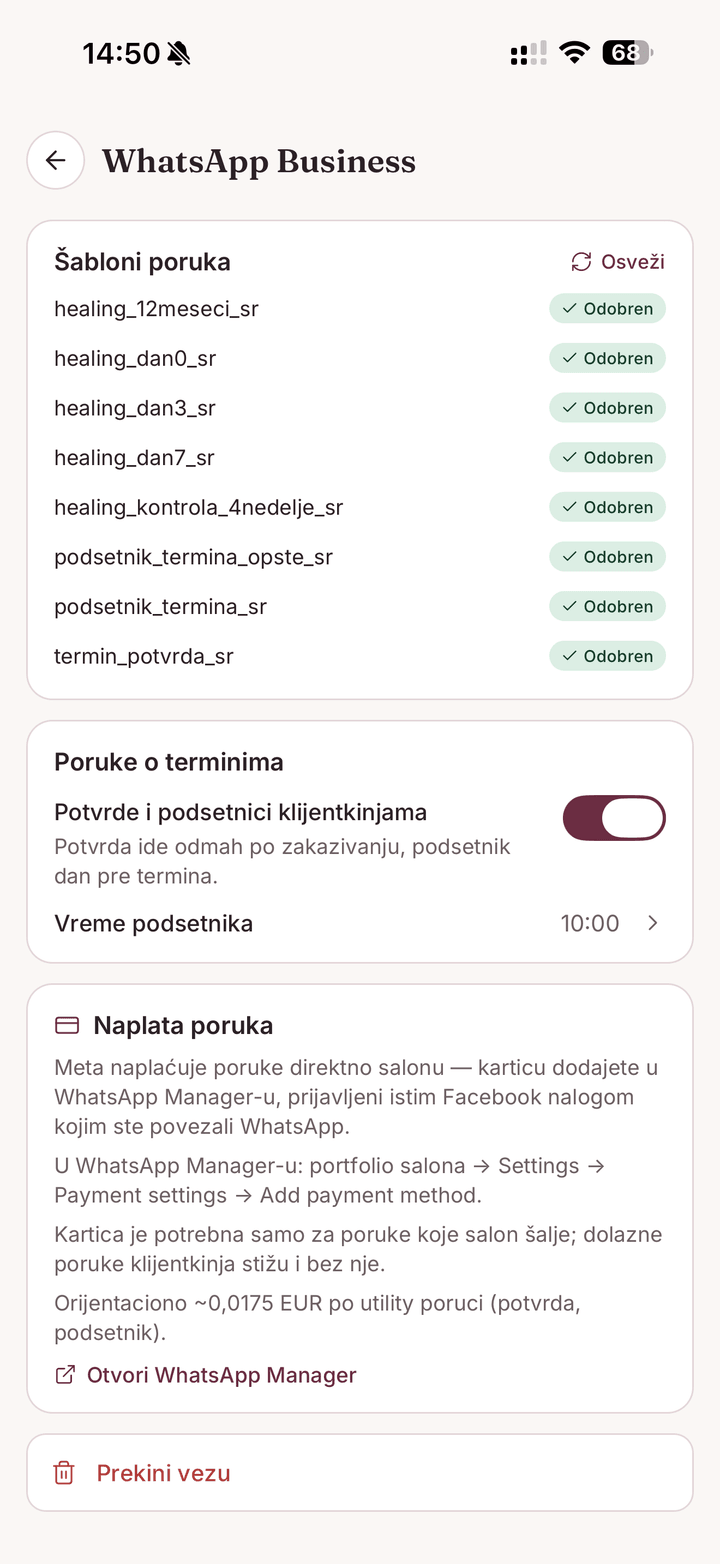
Šabloni odobreni, poruke o terminima uključene - Meta naplaćuje poruke direktno tebi, ne preko nas - orijentaciono oko 0,0175 EUR po poruci, što je oko 3,5 EUR za 200 poruka mesečno. Meta povremeno menja cenovnik; tačan iznos vidiš u WhatsApp Manageru.
- Gotovo! Za probu otvori karton neke klijentkinje (može i probni karton sa tvojim brojem), uđi u tretman i dodirni Pošalji uputstvo za negu. Poruka stiže za nekoliko sekundi, a status u PMUdesk-u prelazi u Isporučeno.
Šta se menja u WhatsApp Business aplikaciji
Broj i dalje radi normalno - dopisivanje, brzi odgovori, katalog, oznake. Posle povezivanja primetićeš sledeće:
- Poruke koje PMUdesk pošalje pojavljuju se u istom razgovoru na telefonu, kao da si ih poslala sa broja salona.
- Odgovori klijentkinja stižu i na telefon i u PMUdesk.
- Aplikacija mora ostati na verziji 2.24.17 ili novijoj - redovno je ažuriraj.
- Pri povezivanju se odjavljuju povezani uređaji (WhatsApp Web, tablet) - posle ih samo ponovo prijaviš.
Meta u pojedinačnim (1:1) razgovorima trajno isključuje nestajuće poruke, poruke „vidi jednom", deljenje lokacije uživo i pravljenje novih lista za emitovanje. Grupni razgovori i pozivi ostaju samo na telefonu.
Povezivanje vidiš i u samoj aplikaciji, pod Connected platform.
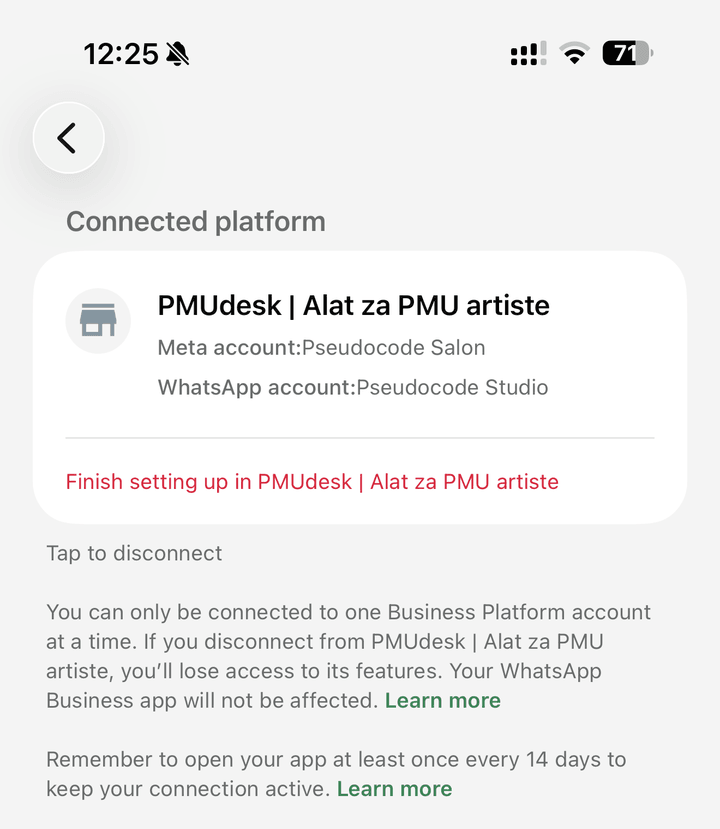
Na šta da obratiš pažnju
- Običan WhatsApp ne prolazi - broj salona mora biti u WhatsApp Business aplikaciji.
- Ako Facebook prikaže „You've previously linked PMUdesk to Facebook" i preskoči izbor naloga - to je u redu, nastavi sa Continue.
- Ako se kod kartice pojavi beli ekran - izaberi Finish i dodaj karticu po koraku 7. Karticu možeš dodati u bilo kom trenutku, povezivanje ne treba ponavljati.
- Crveni baner „Poruke se ne šalju - dodajte platnu karticu" znači da kartica nedostaje ili je Meta još nije prihvatila. Dodaj je po koraku 7 - zakazane poruke kreću same.
- Žuti baner „Napomene sa Metinog naloga" nije greška - poruke se šalju normalno. Najčešće znači da Meta još nije odobrila naziv salona (neke klijentkinje do tada vide broj umesto naziva) ili da biznis nije verifikovan kod Mete (limit je 250 klijentkinja dnevno, što je salonu više nego dovoljno). Ništa ne moraš da radiš.
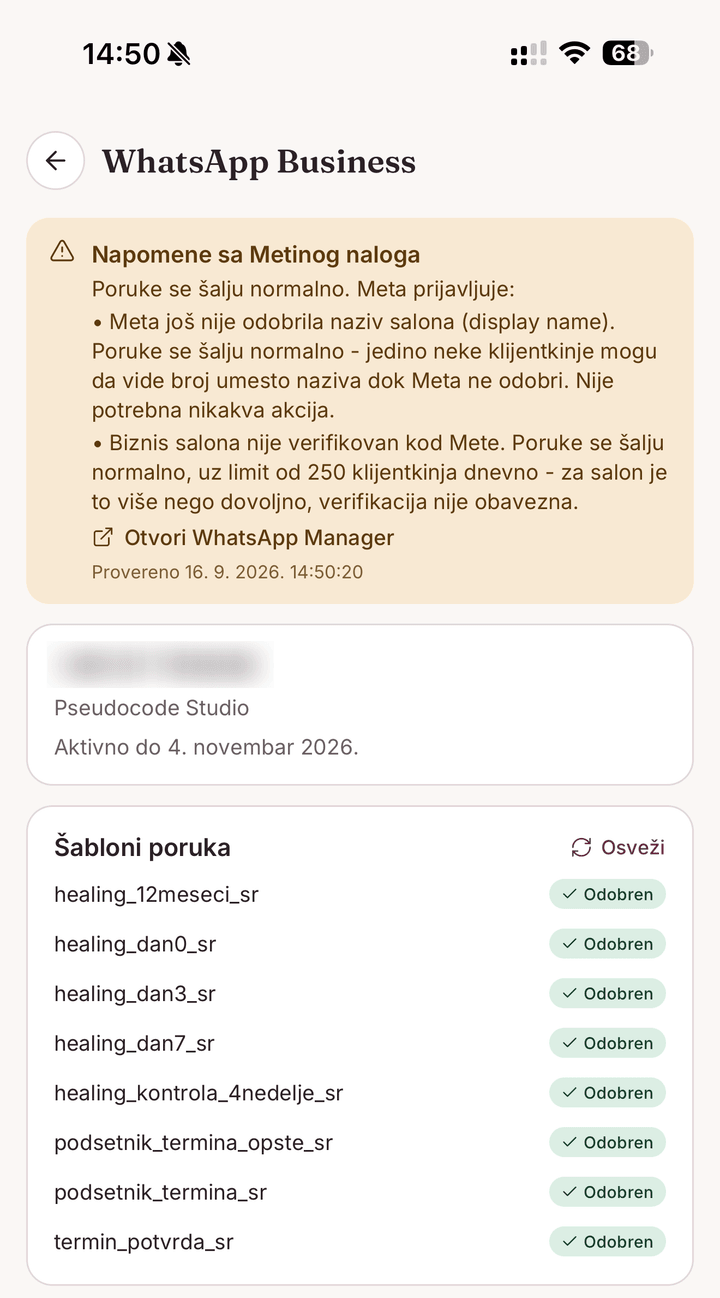
Žuti baner - informacija, ne greška - Veza traje 60 dana. PMUdesk te obaveštava pre isteka, a obnova je isti, kraći postupak: Podešavanja → WhatsApp Business → Ponovo poveži. Dok je veza istekla, poruke se ne šalju; čim je obnoviš, zakazane poruke kreću same (one koje su čekale duže od 48h se preskaču).
- Ako se negde zaglaviš, ne zatvaraj prozor - slikaj ekran i pošalji nam na zdravo@pmudesk.com.
Česta pitanja
Da li klijentkinje vide PMUdesk?
Ne. Poruke stižu sa broja tvog salona - klijentkinje vide tebe.
Mogu li i dalje da pišem sa telefona?
Da. WhatsApp Business aplikacija radi kao i do sada, a razgovori su isti i na telefonu i u PMUdesk-u.
Šta ako nemam Facebook nalog salona?
Napravi ga pre početka, ili koristi lični nalog - samo imaj na umu da se poslovni portfolio vezuje za nalog kojim ga praviš.
Koliko košta?
Meta naplaćuje oko 0,0175 EUR po poruci, direktno tebi. PMUdesk poruke ne naplaćuje posebno.
What happens when you connect
Your number stays in the WhatsApp Business app on your phone. You keep chatting with clients just like before - PMUdesk is simply added alongside and sends automatic messages from the same number.
What to prepare before you start
- Your salon's Facebook account and password - connecting goes through it. If the salon already has a business portfolio on Facebook, this account must be its admin.
- The phone with your salon number and the WhatsApp Business app installed (not regular WhatsApp), updated to version 2.24.17 or newer - connecting fails on older versions. You'll find the version in WhatsApp Business → Settings → Help.
- Your salon's payment card - added right after connecting (step 7), for Meta's message billing.
- 15 uninterrupted minutes - the process can't be paused halfway.
Steps
- In the PMUdesk app, open Settings → WhatsApp Business and tap Connect WhatsApp. If your phone asks whether to allow signing in via pmudesk.com, confirm with Continue.
Settings → WhatsApp Business (app shown in Serbian) - Our page opens with a Connect WhatsApp button - tap it. Facebook opens next: sign in with the salon's account and confirm with the Continue as … button showing your name.
Our page - tap Connect WhatsApp Facebook sign-in - Continue as … - Facebook guides you through its own window. On the first screen, tap Continue. Then you choose the salon's Business portfolio - if you don't have one, you create it right there. Enter the salon name, email, country and website if you have one.
First screen - Continue Business portfolio details - Next, choose or create a WhatsApp Business account. Enter the name you want clients to see and the time zone Europe/Belgrade.
- Enter the salon's phone number - the same one you already use in the WhatsApp Business app. Facebook shows the account details for you to check (Next), then asks you to verify the number: open the WhatsApp Business app on your phone and type in the code Facebook shows you (Enter Access code), or tap Scan QR instead and scan the QR code - so keep the phone at hand. At the end Facebook offers to add a payment card - this step often shows a blank white screen. That's not an error: choose Finish and add the card right after, in step 7.
Entering the salon number Checking the details - Next Type the code in the WhatsApp Business app - You're taken back to PMUdesk automatically. The WhatsApp Business screen shows your number, name and an "Active until …" date, plus a list of message templates marked Pending.
Connected - templates awaiting approval - Add a payment card right away - don't wait for templates to be approved. It's easiest on a computer: open business.facebook.com/settings, signed in with the same Facebook account, and pick the salon's portfolio in the top left. Then go to Billing & payments → Payment methods, the WhatsApp Business accounts tab → Add payment method. Without a card, the app shows a red banner and PMUdesk messages don't go out.
Billing & payments → Payment methods → WhatsApp Business accounts → Add payment method - Meta approves templates on its own, usually within a few minutes to a few hours. On the WhatsApp Business screen, tap Refresh from time to time until they're all Approved. If a template shows Rejected or is labeled Marketing - don't change anything, just let us know. On the same screen, under Appointment messages, you turn on confirmations and reminders for clients and pick the reminder time.
Templates approved, appointment messages on - Meta bills messages directly to you, not through us - roughly €0.0175 per message, or about €3.50 for 200 messages a month. Meta changes its pricing from time to time; you'll see the exact amount in WhatsApp Manager.
- Done! To test it, open a client's card (a test card with your own number works too), go into a treatment and tap Send aftercare instructions. The message arrives within seconds and its status in PMUdesk changes to Delivered.
What changes in the WhatsApp Business app
Your number keeps working normally - chats, quick replies, catalog, labels. After connecting, you'll notice the following:
- Messages PMUdesk sends appear in the same chat on your phone, as if you'd sent them from the salon number.
- Client replies arrive both on your phone and in PMUdesk.
- The app must stay on version 2.24.17 or newer - keep it updated.
- Linked devices are signed out when you connect (WhatsApp Web, tablet) - just sign them in again afterwards.
In one-on-one chats, Meta permanently turns off disappearing messages, view once messages, live location sharing and creating new broadcast lists. Group chats and calls stay on your phone only.
You can also see the connection in the app itself, under Connected platform.
Things to watch out for
- Regular WhatsApp won't work - the salon number must be in the WhatsApp Business app.
- If Facebook shows "You've previously linked PMUdesk to Facebook" and skips account selection - that's fine, go on with Continue.
- If a white screen appears at the card step - choose Finish and add the card following step 7. You can add the card at any time; there's no need to connect again.
- A red banner "Messages are not being sent - add a payment card" means the card is missing or Meta hasn't accepted it yet. Add it following step 7 - scheduled messages go out on their own.
- A yellow banner "Notes from your Meta account" isn't an error - messages are sent normally. It usually means Meta hasn't approved the salon's display name yet (until then some clients may see the number instead of the name) or the business isn't verified with Meta (the limit is 250 clients a day, which is more than enough for a salon). You don't need to do anything.
Yellow banner - information, not an error (app shown in Serbian) - The connection lasts 60 days. PMUdesk lets you know before it expires, and renewing is the same, shorter process: Settings → WhatsApp Business → Reconnect. While the connection is expired, messages aren't sent; as soon as you renew it, scheduled messages go out on their own (those waiting longer than 48h are skipped).
- If you get stuck, don't close the window - take a screenshot and send it to zdravo@pmudesk.com.
FAQ
Do clients see PMUdesk?
No. Messages come from your salon's number - clients see you.
Can I still message from my phone?
Yes. The WhatsApp Business app works just like before, and chats are the same on your phone and in PMUdesk.
What if the salon doesn't have a Facebook account?
Create one before you start, or use your personal account - just keep in mind that the business portfolio is tied to the account you create it with.
How much does it cost?
Meta charges roughly €0.0175 per message, billed directly to you. PMUdesk doesn't charge separately for messages.