
Termini i kalendar
Appointments & Calendar
Zakazivanje, izmena i otkazivanje, statusi, povezivanje sa Google kalendarom i šta uraditi kad veza istekne.
Scheduling, editing and cancelling, statuses, Google Calendar sync and what to do when the connection expires.
Ažurirano za verziju 1.7.0 - oktobar 2026
Updated for version 1.7.0 - October 2026
Ekran „Danas"
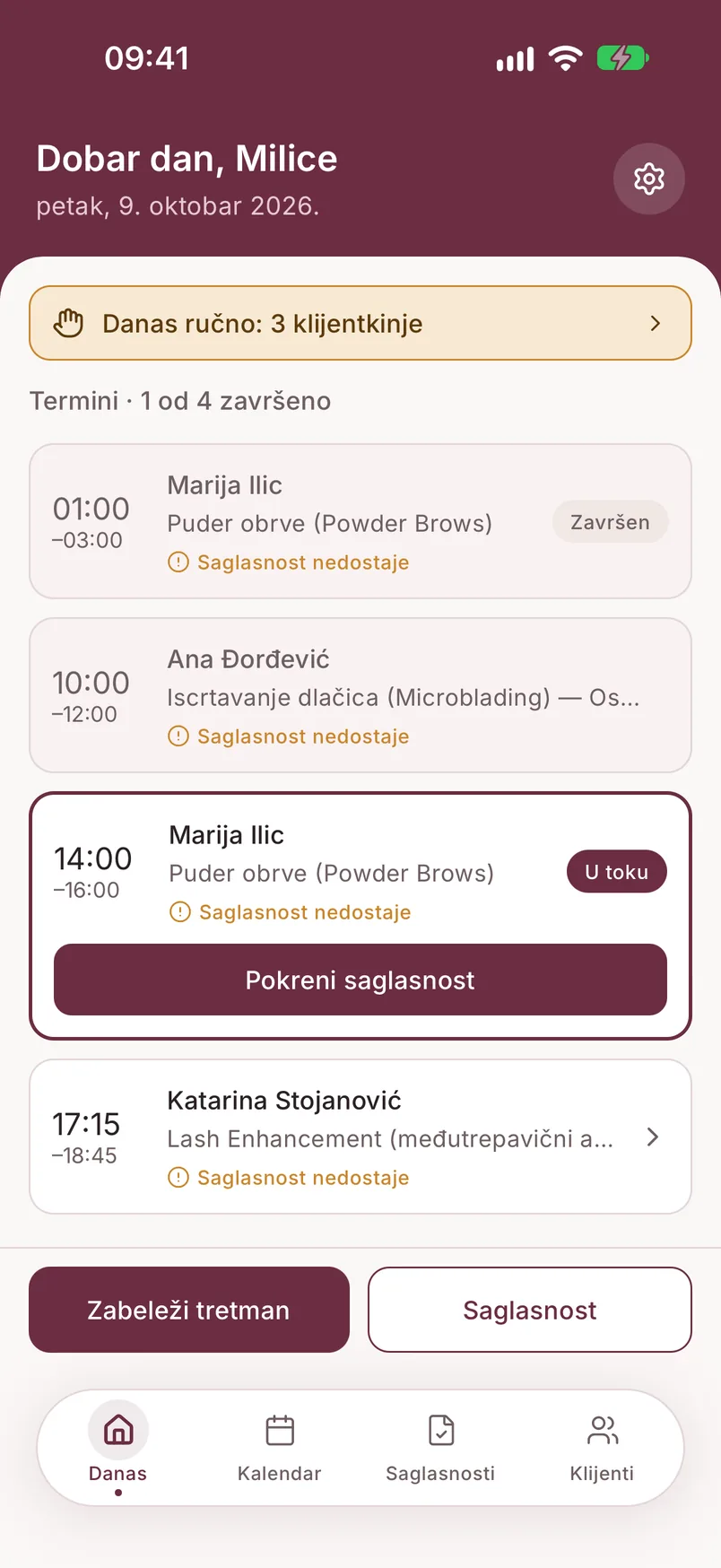
Tab „Danas" je početni ekran: pozdrav, današnji datum i zupčanik koji otvara Podešavanja. Ispod je lista „Termini · X od Y završeno" - za svaki termin vidiš vreme, klijentkinju, uslugu i da li postoji saglasnost („Saglasnost" ili „Saglasnost nedostaje").
Termin koji je sledeći na redu je istaknut i ima dugme za sledeći korak: „Pokreni saglasnost" ako saglasnost nedostaje, inače „Zabeleži tretman".
Iznad termina se, kad ima šta da uradiš, pojavljuju kartice:
- „Danas ručno: N klijentkinja" - healing poruke koje danas šalješ ručno; dodir otvara listu sa tekstom poruke i dugmadima
- „Healing: N klijentkinja čeka odgovor" - klijentkinje koje su odgovorile na healing poruku
- upozorenje da WhatsApp veza ističe ili je istekla
Na dnu su dva dugmeta za klijentkinju koja je došla bez termina: „Zabeleži tretman" i „Saglasnost". Kad za danas nema termina, ekran to kaže i prikazuje kad je sledeći.
Više o karticama za healing na stranici Healing follow-up.
Zakazivanje novog termina
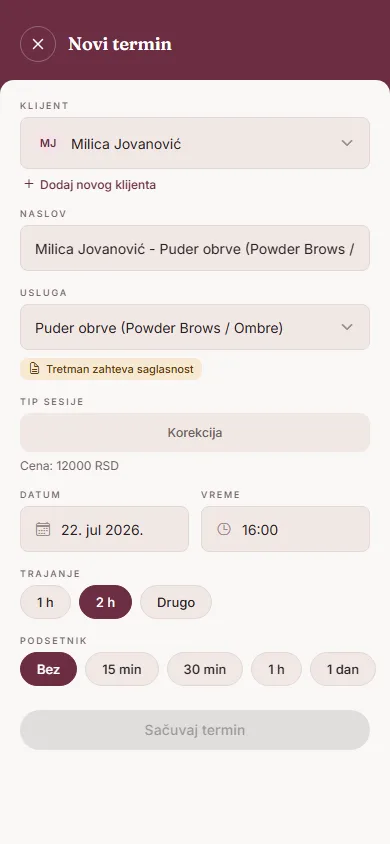
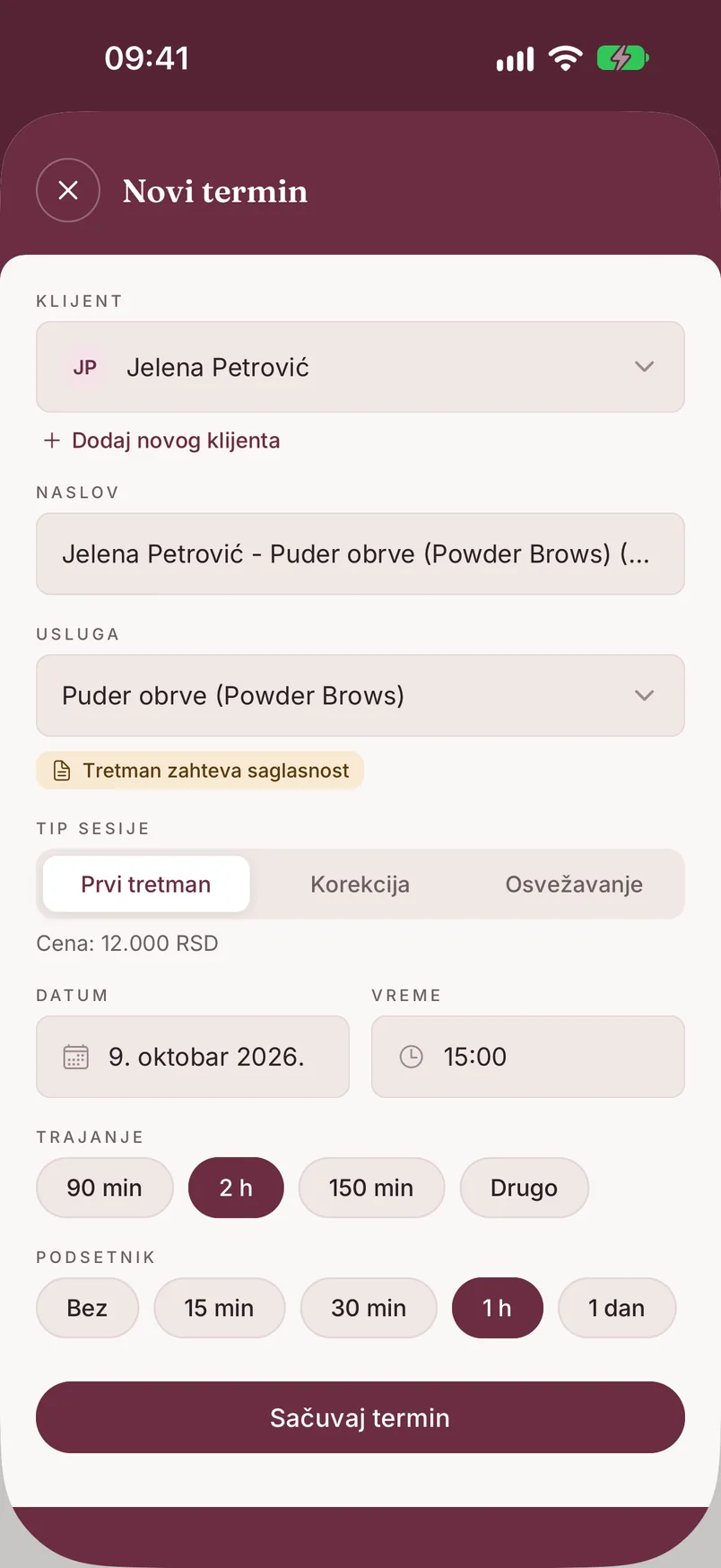
Na tabu „Kalendar" dodirni „+" u zaglavlju (ili dugme „Novi termin" u praznom danu). Termin možeš da zakažeš i sa kartona klijentkinje, dugmetom „Zakaži termin". Redosled u formularu:
- Klijent - obavezno; biraš iz liste ili preko „Dodaj novog klijenta" praviš karton direktno iz ovog ekrana
- Naslov - automatski se popuni na osnovu klijentkinje i usluge, ali možeš da ga izmeniš
- Usluga - obavezno; ako tretman zahteva saglasnost, pojavljuje se oznaka „Tretman zahteva saglasnost"
- Tip sesije - samo kod usluga koje imaju cene po tipu sesije: Prvi tretman, Korekcija ili Osvežavanje. Ispod se ispisuje cena za izabrani tip
- Datum i Vreme - obavezno
- Trajanje - biraš iz ponuđenih dužina za tu uslugu, ili „Drugo" za ručni unos u minutima
- Podsetnik - Bez / 15 min / 30 min / 1 h / 1 dan pre termina
Podsetnik u formularu je obaveštenje koje stiže tebi na telefon pre termina - nije poruka klijentkinji. Vrednost koja je unapred izabrana podešavaš u Podešavanjima → „Podrazumevani podsetnik za nove termine".
Dodirni „Sačuvaj termin". Ako se novo vreme preklapa sa postojećim terminom, aplikacija prikazuje „Termin se preklapa" sa spiskom termina koji se sudaraju i nudi „Otkaži" ili „Zakaži svejedno".
Prikazi kalendara
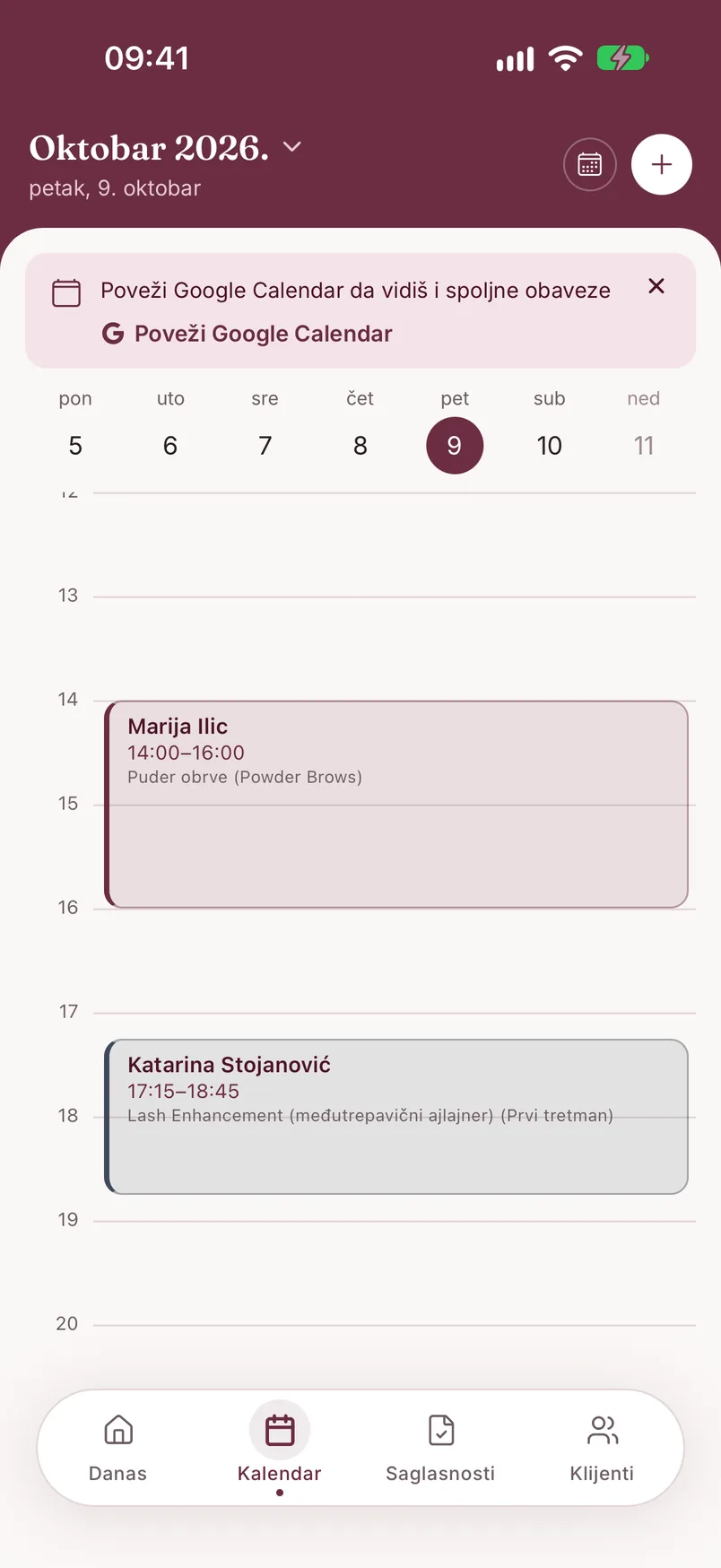
Kalendar ima dva prikaza, a prebacuješ ih ikonicom u zaglavlju, levo od dugmeta „+". Aplikacija pamti koji si poslednji koristila.
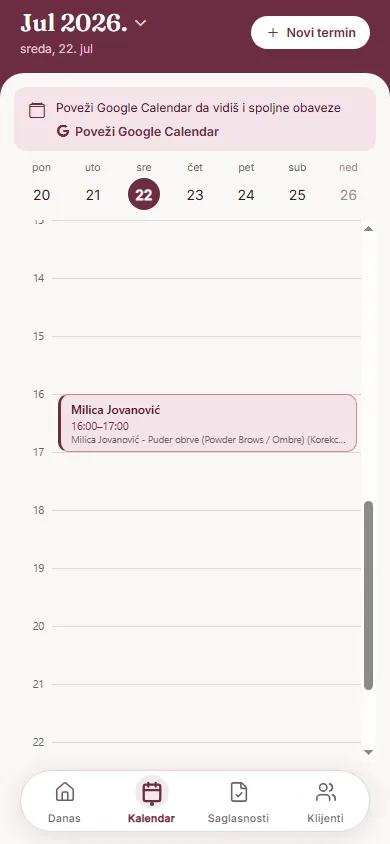
- Dnevni prikaz - traka sa danima u nedelji i vremenska osa izabranog dana, sa imenom klijentkinje, vremenom i uslugom na svakom terminu
- Nedeljni prikaz - sedam kolona, cela nedelja odjednom. Dodir na dan u zaglavlju otvara taj dan u dnevnom prikazu, dodir na prazno mesto otvara novi termin u to vreme, a prevlačenjem levo ili desno menjaš nedelju
Termini su obojeni bojom usluge (podešava se u Podešavanjima → „Vrste tretmana"). Dodir na termin otvara njegove detalje.
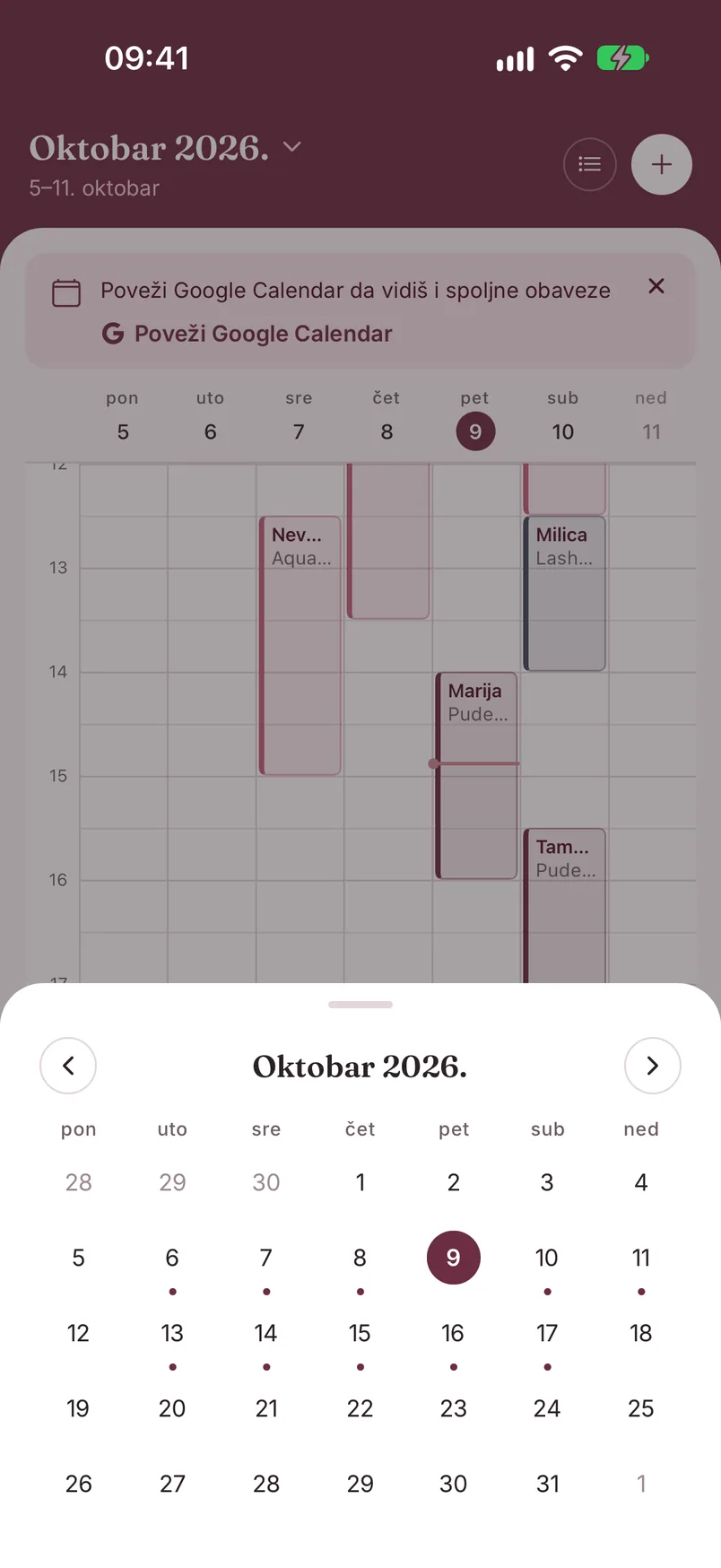
Zaseban mesečni prikaz ne postoji, ali dodirom na naziv meseca u zaglavlju otvaraš mesečni kalendar za brz skok na datum: tačkica ispod dana znači da tog dana ima termina. Kad odeš sa današnjeg dana, u zaglavlju se pojavljuje prečica „Danas".
Kad se termin vidi kao „Završen"
Na ekranu „Danas" termin dobija oznaku „Završen" tek kad prođe njegovo vreme završetka i kad je za njega već zabeležen tretman. Ako vreme termina prođe, a tretman još nije unet, termin ostaje bez oznake „Završen" - otvori ga i dodirni „Zabeleži tretman".
Druge oznake koje možeš videti na ekranu „Danas": „Tretman zabeležen" (tretman je unet i pre nego što termin istekne) i „U toku" (dok termin traje).
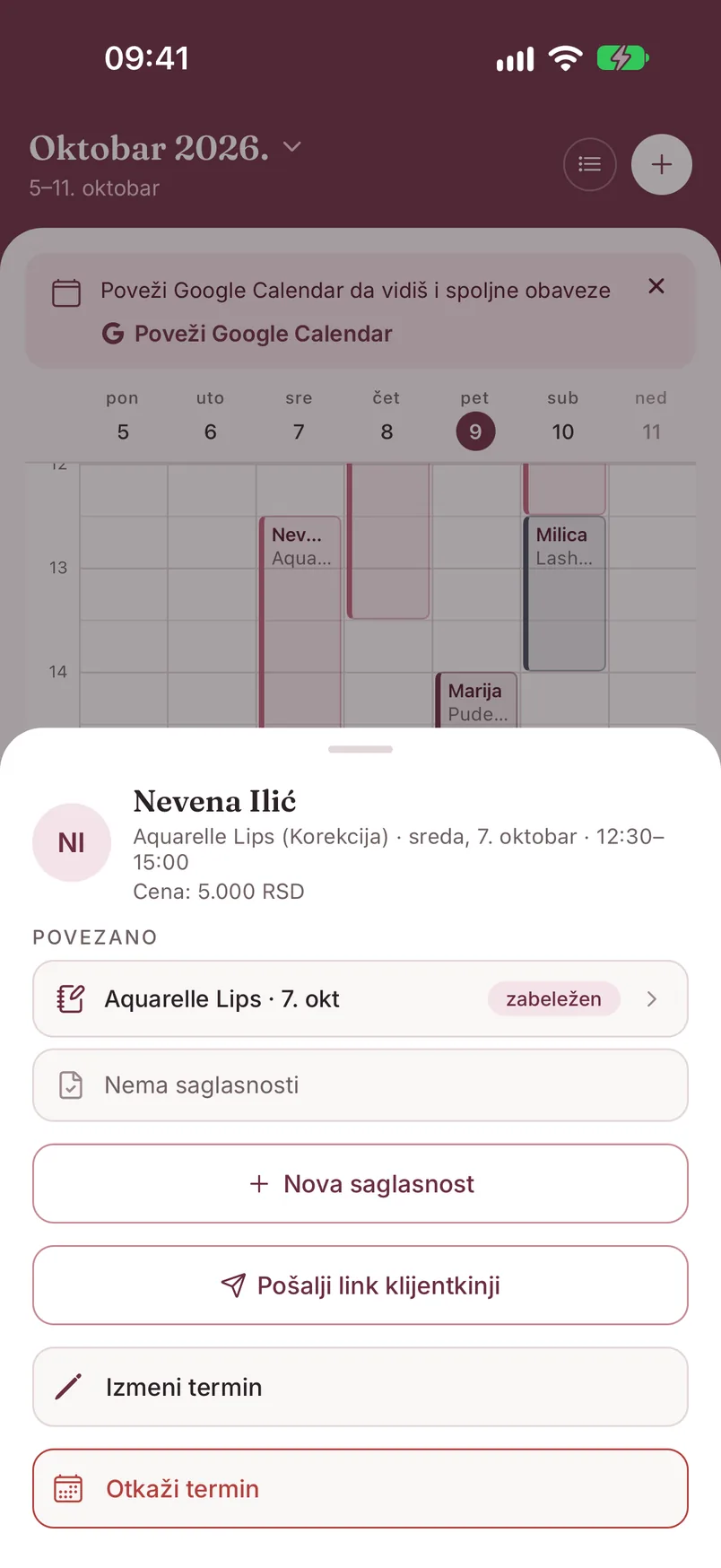
U detaljima termina zabeležen tretman se vidi u delu „Povezano", sa oznakom „zabeležen" - dodir te vodi na tretman.
Detalji termina, izmena i otkazivanje
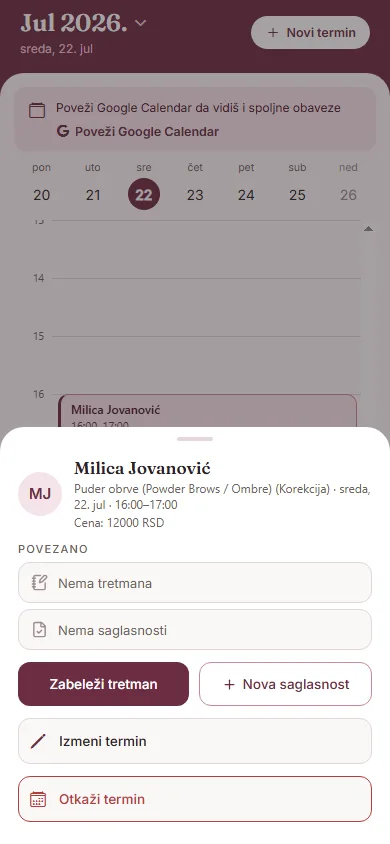
Dodirni termin u kalendaru da otvoriš detalje: klijentkinja, usluga i tip sesije, datum, vreme i cena. Deo „Povezano" pokazuje da li za taj termin postoje tretman i saglasnost, a na Pro planu i status WhatsApp potvrde i podsetnika.
Dugmad ispod zavise od toga šta terminu nedostaje:
- „Zabeleži tretman" i „Nova saglasnost" - dok ih još nema
- „Pošalji link klijentkinji" - link za potpisivanje saglasnosti na daljinu (Pro)
- „Zakaži korekciju" - na terminu prvog tretmana, kod usluga koje nude korekciju, dok ona još nije zakazana
- „Izmeni termin" - vraća te u isti formular, sa već unetim podacima
- „Otkaži termin" - traži potvrdu: „Termin će biti trajno otkazan i uklonjen iz kalendara. Ova radnja se ne može poništiti." Koristi je samo kad si sigurna
Ako je termin stigao iz Google kalendara i povezan je sa klijentkinjom, dostupna je i „Odvoji klijenta" - događaj ostaje u kalendaru, samo se raskida veza sa tom klijentkinjom.
WhatsApp potvrda i podsetnik klijentkinji Pro
Na Pro planu, kad je WhatsApp povezan, aplikacija klijentkinji sama šalje dve poruke o terminu:
- Potvrdu - odmah po zakazivanju
- Podsetnik - dan pre termina, u vreme koje sama izabereš (podrazumevano 10:00)
Poruke sadrže naziv salona, uslugu, datum i vreme termina i adresu salona. Da bi išle, termin mora da ima klijentkinju i uslugu i da bude u budućnosti, a salon mora da ima unetu adresu (Podešavanja → „Profil salona").
Šta još treba da znaš:
- Ako termin zakažeš za manje od 24 sata unapred, ide samo potvrda - podsetnik se preskače.
- Kad terminu promeniš vreme, klijentkinja dobija novu potvrdu i novi podsetnik. Kad termin otkažeš, zakazane poruke se otkazuju.
- Vrstu podsetnika biraš po usluzi, u polju „WhatsApp podsetnik": PMU priprema (sa uputstvom za pripremu - bez kafe, alkohola i kiselina), Opšti ili Bez podsetnika.
- Poruke ne dobija klijentkinja kojoj si isključila „WhatsApp poruke" na kartonu, koja je sama odjavila poruke, ili čiji je broj označen sa „Poruke ne stižu".
Status svake poruke vidiš u detaljima termina, u delu „Povezano" - npr. „Potvrda poslata · Isporučeno", „Podsetnik zakazan za ..." ili razlog zbog kog poruka čeka (npr. „salon nema unetu adresu", „WhatsApp nije povezan").
Poruke uključuješ i isključuješ u Podešavanjima → „WhatsApp Business", u delu „Poruke o terminima" (prekidač „Potvrde i podsetnici klijentkinjama" i „Vreme podsetnika"). Kako se WhatsApp povezuje, piše na stranici WhatsApp.
Povezivanje sa Google kalendarom
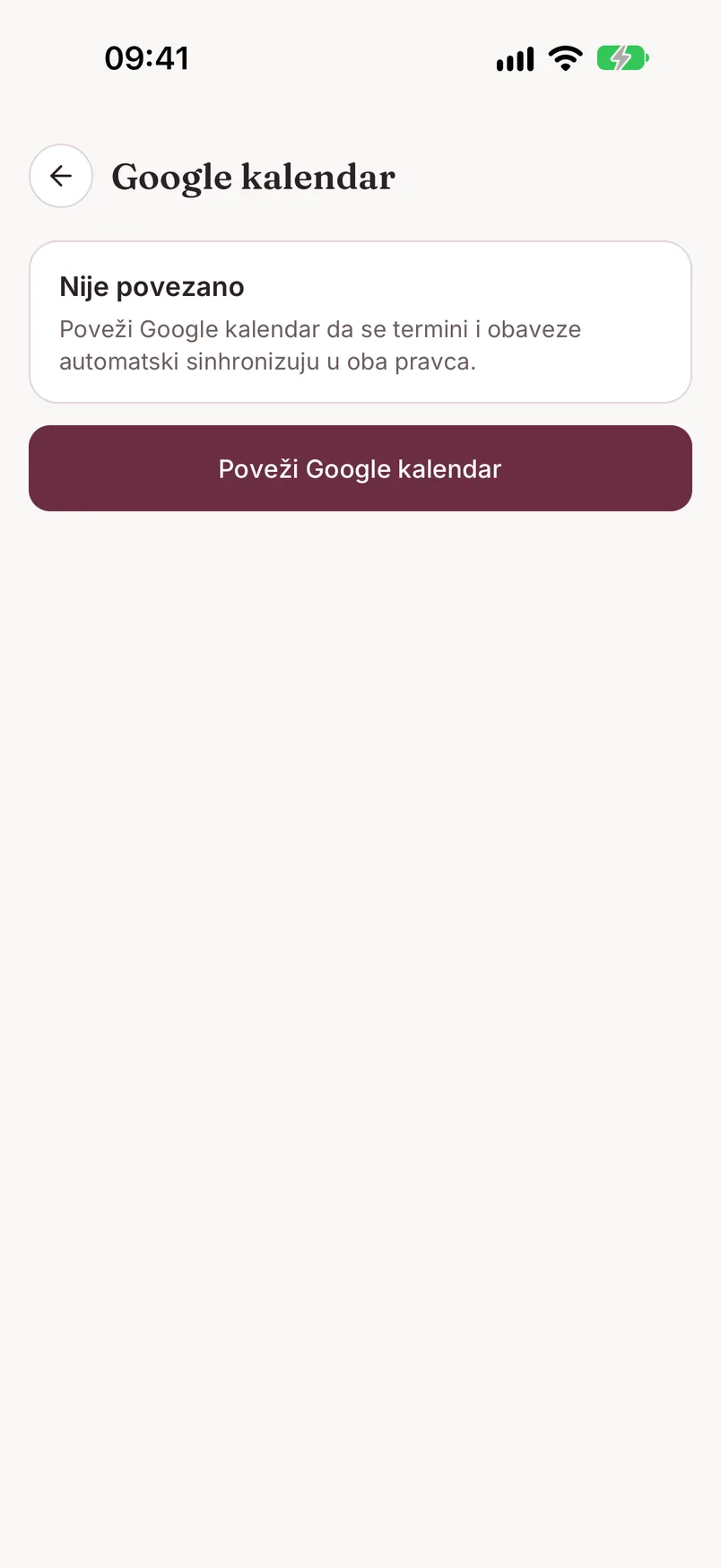
Kad Google kalendar nije povezan, na tabu Kalendar vidiš poruku „Poveži Google Calendar da vidiš i spoljne obaveze" i dugme „Poveži Google Calendar" (poruku možeš i da sakriješ krstićem). Isto možeš da uradiš preko Podešavanja → „Google kalendar", dugmetom „Poveži Google kalendar". Dodirom se otvara Google prijava u pregledaču.
Kad se povežeš, termini i obaveze se sinhronizuju u oba pravca, a na ekranu „Google kalendar" vidiš datum povezivanja i vreme poslednje sinhronizacije. Tu su i: „Sinhronizuj sada", „Promeni nalog" i „Prekini vezu" (uz potvrdu - termini ostaju sačuvani u aplikaciji, briše se samo veza sa Google nalogom, i možeš je ponovo uspostaviti kad god želiš).
Događaj koji stigne iz Google kalendara nosi oznaku „iz Google kalendara". Dodirni ga i izaberi „Poveži sa klijentom" ako je to termin klijentkinje, ili „Nije klijent, sakrij" ako je privatna obaveza.
Kad veza istekne
Ako veza sa Google nalogom istekne, na tabu Kalendar i na ekranu „Google kalendar" pojavljuje se poruka „Sinhronizacija ne radi" - „Veza sa Google nalogom je istekla. Termini možda nisu ažurni." Dodirni „Poveži ponovo" - otvara se ista Google prijava kao pri prvom povezivanju.
Ako sačuvaš termin, a slanje u Google kalendar ne uspe, dobićeš poruku da proveriš konekciju na tabu Kalendar - sam termin ostaje sačuvan u PMUdesk-u bez obzira na to.
The "Today" screen
The "Today" tab is the home screen: a greeting, today's date and a gear icon that opens Settings. Below is the "Appointments · X of Y completed" list - for each appointment you see the time, client, service and whether a consent exists ("Consent" or "Consent missing").
The appointment that's next in line is highlighted and has a button for the next step: "Start consent" if the consent is missing, otherwise "Log treatment".
Above the appointments, cards appear when there's something for you to do:
- "Manual today: N clients" - healing messages you send by hand today; tap to open the list with the message text and buttons
- "Healing: N clients waiting for a reply" - clients who replied to a healing message
- a warning that the WhatsApp connection is about to expire or has expired
At the bottom are two buttons for a walk-in client: "Log treatment" and "Consent". When there are no appointments today, the screen says so and shows when the next one is.
More on the healing cards on the Healing follow-up page.
Scheduling a new appointment
On the "Calendar" tab, tap "+" in the header (or the "New appointment" button on an empty day). You can also schedule from a client card with the "Schedule appointment" button. Order in the form:
- Client - required; pick from the list, or create a card on the spot via "Add new client"
- Title - auto-filled from the client and service, but editable
- Service - required; if the treatment requires consent, a "Treatment requires consent" badge appears
- Session type - only for services with prices per session type: First treatment, Touch-up or Refresh. The price for the selected type is shown below
- Date and Time - required
- Duration - pick from the durations offered for that service, or "Other" to enter minutes manually
- Reminder - None / 15 min / 30 min / 1 h / 1 day before the appointment
The Reminder in the form is a notification sent to you on your phone before the appointment - it is not a message to the client. Set the preselected value in Settings → "Default reminder for new appointments".
Tap "Save appointment". If the new time overlaps an existing appointment, the app shows "Appointment overlap" with the list of conflicting appointments and offers "Cancel" or "Schedule anyway".
Calendar views
The calendar has two views, and you switch between them with the icon in the header, to the left of the "+" button. The app remembers the one you used last.
- Day view - a strip with the days of the week and a timeline for the selected day, with the client's name, time and service on each appointment
- Week view - seven columns, the whole week at once. Tapping a day in the header opens that day in the day view, tapping an empty slot opens a new appointment at that time, and swiping left or right changes the week
Appointments take the color of their service (set in Settings → "Treatment types"). Tapping an appointment opens its details.
There is no separate month view, but tapping the month name in the header opens a month calendar for jumping to a date: a dot under a day means there are appointments that day. When you move away from today, a "Today" shortcut appears in the header.
When an appointment shows as "Done"
On the "Today" screen, an appointment gets the "Done" label only once its end time has passed and a treatment has been logged for it. If the appointment time passes and no treatment has been entered yet, it stays without the "Done" label - open it and tap "Log treatment".
Other labels you may see on the "Today" screen: "Treatment logged" (a treatment was entered before the appointment ended) and "In progress" (while the appointment is underway).
In the appointment details, a logged treatment shows under "Linked" with a "logged" tag - tap it to open the treatment.
Appointment details, editing and cancelling
Tap an appointment in the calendar to open its details: client, service and session type, date, time and price. The "Linked" section shows whether a treatment and a consent exist for it and, on the Pro plan, the status of the WhatsApp confirmation and reminder.
The buttons below depend on what the appointment is still missing:
- "Log treatment" and "New consent" - while they don't exist yet
- "Send link to client" - a link for signing the consent remotely (Pro)
- "Schedule touch-up" - on a first-treatment appointment, for services that offer a touch-up, while one isn't scheduled yet
- "Edit appointment" - takes you back to the same form, pre-filled
- "Cancel appointment" - asks for confirmation: "The appointment will be permanently cancelled and removed from the calendar. This action cannot be undone." Use it only when you're sure
If the appointment came from Google Calendar and is linked to a client, "Detach client" is also available - the event stays in the calendar, only the link to that client is removed.
WhatsApp confirmation and reminder to the client Pro
On the Pro plan, with WhatsApp connected, the app sends the client two messages about her appointment on its own:
- a confirmation - right after booking
- a reminder - the day before the appointment, at a time you choose (10:00 by default)
The messages include the salon name, the service, the appointment date and time, and the salon address. For them to go out, the appointment must have a client and a service and be in the future, and the salon must have an address entered (Settings → "Salon profile").
What else to know:
- If you book an appointment less than 24 hours ahead, only the confirmation goes out - the reminder is skipped.
- When you change the appointment time, the client gets a new confirmation and a new reminder. When you cancel the appointment, scheduled messages are cancelled.
- You choose the reminder kind per service, in the "WhatsApp reminder" field: PMU prep (with preparation instructions - no coffee, alcohol or acids), General or No reminder.
- No messages go to a client whose "WhatsApp messages" switch you turned off on her card, who opted out herself, or whose number is marked "Not reaching".
You can see the status of each message in the appointment details, under "Linked" - e.g. "Confirmation sent · Delivered", "Reminder scheduled for ..." or the reason a message is on hold (e.g. "salon address is missing", "WhatsApp is not connected").
Turn the messages on and off in Settings → "WhatsApp Business", under "Appointment messages" (the "Confirmations and reminders to clients" switch and "Reminder time"). The message text itself is sent in Serbian. How to connect WhatsApp is covered on the WhatsApp page.
Connecting Google Calendar
When Google Calendar isn't connected, the Calendar tab shows "Connect Google Calendar to also see your external commitments" and a "Connect Google Calendar" button (you can also dismiss the message with the X). You can do the same from Settings → "Google Calendar", with the "Connect Google Calendar" button. Tapping it opens Google sign-in in the browser.
Once connected, appointments and commitments sync in both directions, and the "Google Calendar" screen shows the connection date and the last sync time. You also get: "Sync now", "Change account" and "Disconnect" (with confirmation - appointments stay saved in the app, only the connection to your Google account is removed, and you can reconnect any time).
An event that arrives from Google Calendar is tagged "from Google Calendar". Tap it and choose "Link to client" if it's a client appointment, or "Not a client, hide" if it's a private commitment.
When the connection expires
If the connection to your Google account expires, both the Calendar tab and the "Google Calendar" screen show "Sync is not working" - "The connection to your Google account has expired. Appointments may be out of date." Tap "Reconnect" - it opens the same Google sign-in as the first time.
If you save an appointment but pushing it to Google Calendar fails, you'll see a message to check the connection on the Calendar tab - the appointment itself stays saved in PMUdesk regardless.